
Explore More From TechnofluxAI
Find our latest tutorials, AI workflows, creator resources, social channels, and other useful TechnofluxAI links in one place.
Visit the TechnofluxAI Links PageInstagram profiles can hold photos, Reels, shopping finds, tutorials, entertainment clips, creator posts, and just about anything else you publish. The problem is that once all of those posts land on the same profile grid, a new visitor may have no idea where one type of content ends and another begins.
Quick Answer
To organize your Instagram grid into sections, create branded divider images with labels such as Entertainment, Fantastic Finds, or Creator Tips. Publish each divider as its own Instagram post, then use Instagram’s Reorder grid feature to position the divider between groups of related posts. The dividers are visual labels, not clickable categories, but they can make a mixed-content profile easier for visitors to scan.
Why We Tried Organizing an Instagram Grid This Way
We experimented with this setup on the Tina Trends Instagram account.
Tina Trends can include different kinds of posts. One group might be entertainment content. Another might contain shopping discoveries and interesting products. Other posts may have a completely different purpose.
Instead of expecting somebody who lands on the profile to figure everything out, we wanted to see if the grid itself could provide a little context.
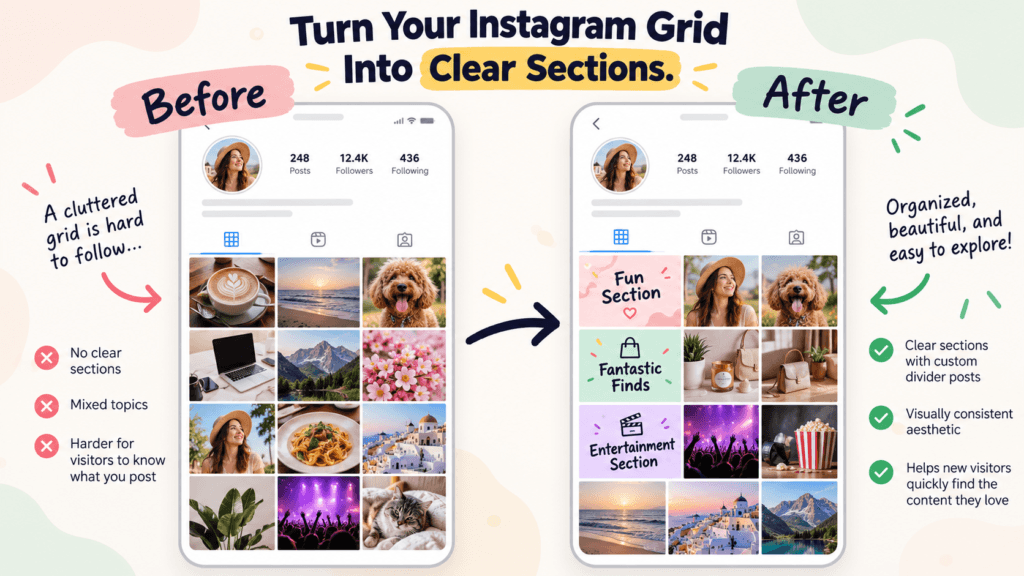
Instagram does not turn the main profile grid into a traditional website menu with category headings. So we created our own visual headings.
Using ChatGPT, we designed individual branded images with section names including:
- Fun Section
- Fantastic Finds
- Entertainment Section
Each image became a normal Instagram post. We could then place that post between groups of content so it acted like a sign inside the profile.
What Changed With Instagram Grid Organization in 2026?
This idea became much easier to manage in 2026 because Instagram rolled out the ability to reorder posts on your main profile grid.
Instead of being permanently stuck with a profile based only on publishing order, creators can now move existing posts around the main grid. That makes it possible to publish a divider and then position it near the content it is supposed to label.
You are not changing the original publishing date or turning the post into a special category. You are changing how content is presented on your profile.
Step 1: Decide Which Sections Your Instagram Profile Actually Needs
Before making graphics, look at what you already publish.
Do not invent eight categories just because you can. A divider is useful only when it helps a visitor recognize a meaningful group of posts.
Start by listing your recurring content types.
Tutorials, behind-the-scenes posts, experiments, tools, and personal updates.
Product finds, deals, demonstrations, comparisons, and entertainment.
Products, tutorials, customer examples, announcements, and educational content.
For Tina Trends, shopping-oriented discoveries and entertainment were different enough that visual section labels made sense.
A useful test is simple: Would a first-time visitor understand this section name without needing an explanation?
“Fantastic Finds” works because it gives somebody a clue about what comes next. A label such as “Section 2” would technically divide the grid, but it would not explain anything.
Step 2: Choose Short Section Names
Instagram is a visual platform, and profile thumbnails are relatively small. Long headings quickly become hard to read.
Keep your divider wording short and obvious.
- Entertainment
- Fantastic Finds
- Creator Tips
- AI Experiments
- Behind the Scenes
- Tutorials
- New Products
- Customer Favorites
You can still give the wording some personality. Tina Trends does not need to sound like a corporate filing cabinet. The important part is that the visitor can recognize what the label means.
One Thing I have Learned while building TechnofluxAi is that Ai tools usually sound easier to use than they are in the real world. I like to try things myself, see where I get stuck, and figure out what actually saves time instead of just repeating promisies.That’s the approach I use throughout this site: keep what works, point out what doesn’t, and explain things in a way that makes sense for someone who is still learning. I started out searching for an image creator. That was my first interaction with Ai. I was frustrated by the vast tool list without any real direction on which tool was best. Then I realized how powerful this tool was .and was going to be in the future. Making mistakes has helped me in the choice of articles I write.
Step 3: Create Your Instagram Divider Images With ChatGPT
Once you know your section names, you need the images that will separate them.
We used ChatGPT as part of the Tina Trends workflow because we could describe the look we wanted, generate a design, and then refine it conversationally instead of rebuilding the idea from scratch every time.
If you are new to that process, our guide to AI image creation tools explains where ChatGPT Images fits alongside other image generators.
Start With One Master Design
The easiest way to make several dividers look like they belong together is to establish one style first.
Decide on:
- Background style
- Brand colors
- Typography style
- Border or frame treatment
- Logo placement, if you use one
- Amount of empty space around the heading
Then reuse that visual direction when creating the other sections.
Copyable ChatGPT Prompt
Create the Remaining Dividers as a Matching Set
Once the first divider looks right, keep the same visual identity and change only what needs to change.
For example:
- Version 1: Entertainment Section
- Version 2: Fantastic Finds
- Version 3: Fun Section
Consistency matters more here than making every image completely different. If each divider uses unrelated colors, fonts, and styles, visitors may not realize they are part of the same navigation idea.
Step 4: Check Every Divider at Small Size
A graphic can look fantastic when it fills your screen and become unreadable once Instagram reduces it to a grid preview.
Before uploading, shrink the image on your screen and ask:
- Can I immediately read the section name?
- Is the text too close to an edge?
- Is the background fighting with the wording?
- Is there too much decorative detail?
- Does this still look related to the other divider images?
This is one reason simple divider designs often work better than elaborate AI artwork. The job of this particular image is communication.
Step 5: Publish Each Divider as Its Own Instagram Post
This part is important.
If you want a divider to occupy its own position on the main profile grid, publish it as an individual Instagram post.
Do not place three section dividers inside one carousel and expect all three to appear as separate positions on the profile grid. A carousel occupies one main grid position.
For our setup, each Tina Trends section label needed its own post so it could be positioned independently.
One visible divider position on the profile grid = one individual Instagram post.
Step 6: Reorder the Instagram Grid
Instagram’s 2026 grid-reordering feature gives this workflow much more flexibility than creators had before.
- Open Instagram and go to your profile.
- Press and hold a post on the main profile grid.
- Choose Reorder grid when the option appears.
- Drag posts into the order you want.
- Position each divider before the group of posts it is supposed to introduce.
- Review the full profile before you finish.
Instagram began rolling the reordering feature out globally in June 2026. Interface wording can still change as the app is updated, so make sure you are using a current version of Instagram if you do not see the control where expected.
Pinned posts also need attention. A pinned post is designed to stay at the top of your profile, so do not assume it will behave like an ordinary post while you are reorganizing everything else.
Step 7: Build the Sections Around Real Content
A divider by itself does not accomplish much. The organization becomes useful when the content surrounding it actually matches the label.
Imagine a simplified Tina Trends grid arranged like this:
The exact layout will depend on how much content you have. You do not need every section to contain the same number of posts.
Think of the divider as a sign on a shelf. The sign helps only when the items near it belong together.
Dividers vs. Pinned Posts vs. Highlights
These Instagram features solve different problems.
| Feature | What It Does | What It Does Not Do |
|---|---|---|
| Visual divider | Labels an area of your main profile grid | Does not create a clickable category |
| Pinned post | Keeps important content at the top of your grid | Does not sort the rest of your posts into categories |
| Story Highlight | Groups saved Stories into named collections | Does not reorganize your main post grid |
| Real navigation | Takes visitors to a specific destination or filtered collection | Is not created by placing a graphic in the Instagram grid |
That distinction matters. Calling these graphics “Instagram categories” without explaining the difference would make the technique sound more powerful than it really is.
They are visual section dividers. That is the useful part.
Use AI as Part of the Workflow, Not the Whole Workflow
ChatGPT helped us create the divider concept and visuals, but the creator still has to decide which sections make sense, what wording fits the account, where posts belong, and how the finished profile should look.
That is the same approach we use in our broader AI creator workflow: AI can speed up parts of production, but the creator still makes the important decisions.
How to Keep the Grid Organized After You Build It
Creating the sections is the easy part. Maintaining them is where the system can become messy.
Every time you publish something new, ask which section it belongs to before you post it.
A simple workflow is:
- Create the new post.
- Decide which profile section it belongs to.
- Publish normally.
- Review the main profile grid.
- Use grid reordering when needed to move the post into the correct visual group.
- Check that your divider still clearly introduces the posts around it.
This does add a maintenance step. If you publish several times per day, manually curating a detailed profile layout may become annoying very quickly.
For a creator with a more manageable posting schedule, it may be worth the extra minute or two because the profile can be treated more like a curated landing page instead of a simple chronological archive.
If content planning is already becoming difficult, our AI content calendar workflow for solo creators shows how we organize content before it reaches the publishing stage.
Common Mistakes to Avoid
Making Too Many Sections
If every three posts have another divider, the dividers can become the clutter you were trying to fix.
Use them for major content groups, not every tiny variation in your content.
Using Long Divider Titles
“Our Favorite Interesting Affordable Products We Found This Month” might describe the section accurately, but it is terrible thumbnail text.
“Fantastic Finds” is easier to scan.
Making Every Divider Look Different
A consistent template helps viewers recognize that each graphic has the same function.
Change the section title. Keep enough of the visual system consistent that the graphics still feel connected.
Treating the Divider Like a Real Menu
Someone cannot tap “Fantastic Finds” and automatically filter your profile to shopping posts.
It is still an Instagram post.
Forgetting About New Posts
Your profile is not static. New content can affect the way your sections look, so periodically check the account as a visitor would see it.
Trying to Force Every Post Into the System
Some posts may not fit neatly into a category, and that is fine.
The point is to create more clarity, not another complicated content-management job.
Is This Better Than Planning a Perfect Instagram Grid in Advance?
For us, the interesting part of the 2026 workflow is that you no longer have to treat every Instagram post like a permanent puzzle piece whose location must be calculated before publishing.
You can create content, publish it, and then use the profile grid as a presentation layer.
That gives creators room to experiment.
You might discover that “Fun Section” is too vague and replace it later with “Entertainment.” You might decide shopping content deserves two groups instead of one. You might eventually remove dividers completely.
That is better than building an elaborate visual system and feeling trapped by it.
FAQ
Can you create categories on an Instagram profile grid?
Not in the traditional sense. Custom divider posts can visually separate groups of content, but they do not create clickable categories, filters, or folders on the main Instagram profile grid.
Can you rearrange Instagram posts in 2026?
Yes. Instagram rolled out its Reorder grid feature globally in June 2026, allowing users to change the display order of content on the main profile grid without deleting and reposting each item.
Should Instagram divider images be uploaded as a carousel?
Not if you want each divider to occupy a separate grid position. A carousel occupies one main profile-grid position, so publish each section divider as its own post when you need to position the labels independently.
Do Instagram grid dividers improve reach?
We are not making that claim. Our Tina Trends experiment used dividers to make different kinds of content easier to recognize when somebody visits the profile. Reach and engagement should be measured separately rather than assumed.
Can ChatGPT make Instagram section divider images?
Yes. You can describe the section title, colors, branding, layout, and visual style, generate a divider, and then refine the design through follow-up instructions. Keep important wording large and simple enough to remain readable on the profile grid.
Are divider posts the same as Instagram Highlights?
No. Highlights organize saved Stories, while divider posts appear inside the main profile grid. They solve different organization problems.
What We Learned From the Tina Trends Experiment
The most useful part of this experiment was not discovering a secret Instagram growth hack.
It was realizing that the profile grid itself can be designed with a job in mind.
When an account mixes entertainment, shopping discoveries, creator content, or other topics, a visitor may need a little help understanding what they are looking at. A few clear visual dividers can provide that context without pretending Instagram has a category system that it does not actually have.
ChatGPT makes the design portion faster because one visual concept can become a reusable set of branded graphics. Instagram’s grid-reordering controls then make the layout much easier to maintain than the old chronological-only approach.
The final workflow is simple:
- Choose a few meaningful content sections.
- Create one branded divider design.
- Use ChatGPT to turn it into a matching divider set.
- Publish each divider as an individual post.
- Reorder the profile grid around your real content.
- Maintain the layout as new posts are added.
If you are building a larger AI-assisted publishing system around this process, see our AI tools for content creators guide for the other parts of the workflow.
The goal is not a perfect Instagram grid. The goal is a profile that makes sense when somebody sees it for the first time.
Editorial note: This tutorial documents a TechnofluxAI/Tina Trends workflow experiment. Instagram features and interface labels can change as the app is updated.