
Estimated reading time: 7 minutes
AI Automation Recovery Guide
How to Recover When an AI Automation Fails
AI automation can save hours, but one broken trigger, bad prompt, expired connection, or missing approval step can create a mess fast. The goal is not to panic. The goal is to contain the issue, find the failure point, and rebuild the workflow with stronger safeguards.
Quick Answer
When an AI automation fails, pause the workflow, protect any affected data, check the trigger and inputs, review the AI output, test each step manually, then restart only after adding a fallback or human review point.
The Real Pain Point
Most automation failures are not dramatic. They are quiet. A form stops sending leads, an AI reply goes out with the wrong tone, a task never gets created, or a spreadsheet fills with messy data.
What This Guide Will Help You Do
You will learn how to diagnose broken AI automations, recover lost momentum, prevent repeat failures, and design workflows that are easier to trust. This is written for beginners who use tools like ChatGPT, Zapier, Make, Airtable, Google Sheets, Notion, email platforms, CRMs, or social media schedulers.
Soft CTA:
Before rebuilding your automation, create a simple AI workflow checklist so every trigger, input, output, and approval step is documented.
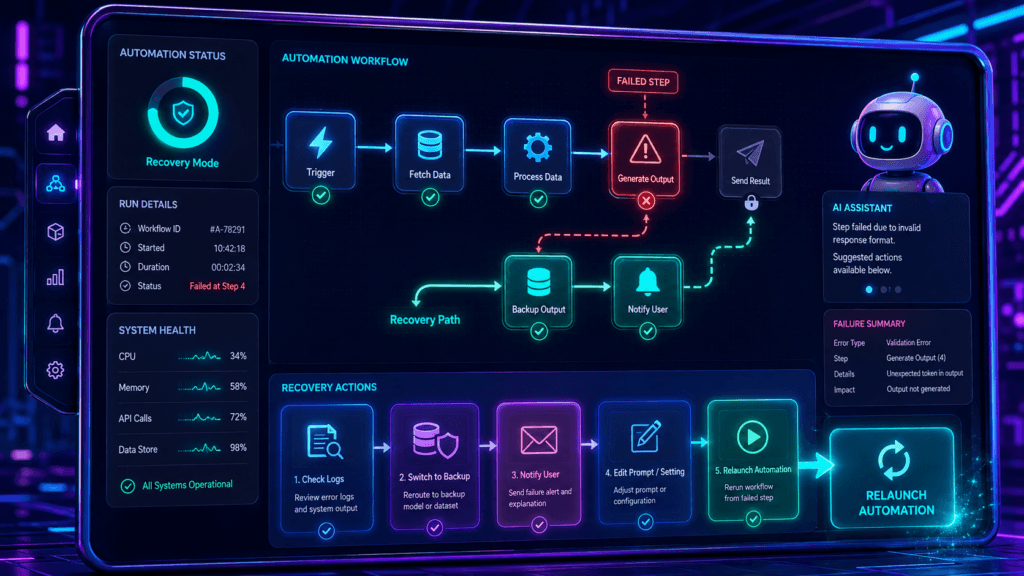
Troubleshooting Framework
Start With Containment, Not Guesswork
A failed automation needs a recovery process. Randomly changing prompts, reconnecting apps, or deleting steps can make the problem harder to find. First, stop the damage. Then trace the workflow in order.
1. Pause the Automation
Turn off the workflow before it sends more emails, creates more tasks, updates more records, or publishes more content.
2. Save the Evidence
Keep logs, screenshots, timestamps, failed outputs, and affected records. These details help you find the real cause.
3. Check the Inputs
Many AI failures start with missing fields, messy data, vague prompts, changed file names, or unexpected user responses.
The 7-Step AI Automation Recovery Workflow
1: Identify What Failed
Name the exact failure. Did the automation not run? Did it run twice? Did the AI generate a bad answer? Did the final app reject the data? A clear failure statement keeps the recovery focused.
2: Find the First Broken Step
Start at the trigger. Move forward one step at a time. Do not begin at the final output unless you already know the earlier steps worked.
3: Compare Good Runs Against Bad Runs
Review a successful automation run and compare it with the failed one. Look for changed field names, missing data, timing issues, prompt changes, permissions, or app connection errors.
4: Test the AI Prompt Separately
Copy the exact input into the AI tool and test the prompt by itself. If the AI gives weak, unsafe, or inconsistent output, the workflow problem may be prompt design rather than app setup.
5: Repair One Thing at a Time
Fix a single issue, then test again. Changing five settings at once may hide the real fix and create new problems.
6: Run a Controlled Test
Use a test record, dummy contact, sample form entry, or draft-only publishing mode. Never restart a risky automation directly on real customers or live content.
7: Add a Safety Layer
Add a review step, error alert, fallback route, approval checkbox, or output quality check before turning the automation back on.
Example: Failed Lead Follow-Up
A website form sends new leads to an AI tool. The AI writes a follow-up email, then the automation creates a CRM task.
If the email sounds wrong, check the form fields first. A missing business type, budget, or customer question can make the AI guess. The fix may be a stronger intake form, not a better email app.
Example: Failed Content Workflow
A content automation turns blog notes into social posts. One day, it creates captions with broken formatting and missing context.
Review the source notes, the prompt, and the publishing destination. The issue may come from pasted bullet points, changed headings, or a scheduler field limit.
Warning: Do Not Restart Too Quickly
A broken automation can repeat the same mistake hundreds of times. Before you restart it, confirm the trigger, input data, AI response, destination app, permissions, and failure alert system.
AI Automation Recovery Checklist
- Pause the automation before more damage happens.
- Document the failed run with screenshots or logs.
- Check the trigger event and source app.
- Review every required input field.
- Test the AI prompt outside the automation.
- Confirm the output format matches the next app.
- Check permissions, API keys, account access, and app limits.
- Run a test with safe sample data.
- Add alerts for future failures.
- Use human approval for high-risk steps.
Prevention System
Build Automations That Can Fail Safely
The best AI automation systems are not perfect. They are recoverable. A smart workflow should alert you, pause when needed, and make it easy to understand what went wrong.
Add Human Review Points
Use approval steps for customer emails, published content, invoices, proposals, legal language, medical topics, hiring messages, or anything that affects trust.
Use Fallback Paths
If the AI output is empty, too long, badly formatted, or missing a required field, send the task to a review queue instead of pushing it forward.
Create Error Alerts
Send failure notices to email, Slack, Notion, or your project board. A fast alert can save hours of cleanup.
Common Mistakes to Avoid
1: Trusting the AI Output Without Rules
AI needs clear output rules. Ask for a specific format, length, tone, structure, and required fields.
2: Skipping Test Records
A workflow that works once may still fail with messy real data. Test short entries, long entries, blank fields, duplicate records, and unusual requests.
3: Automating Too Much Too Soon
Start with one narrow workflow. Once it runs cleanly, add more steps. Complex automations are easier to break and harder to debug.
4: Not Keeping a Change Log
Write down prompt edits, app changes, new fields, and permission updates. A simple change log makes future recovery much faster.
FAQ: AI Automation Failure Recovery
Why do AI automations fail?
They usually fail because of bad inputs, changed app permissions, weak prompts, broken triggers, missing fields, rate limits, formatting issues, or unclear handoffs between tools.
What should I check first?
Check the trigger first. If the automation never started, the issue is usually in the source app, trigger rules, connection, or timing.
How do I know if the AI prompt caused the failure?
Test the prompt by itself with the same input. If the AI output is unclear, inconsistent, too long, or missing required information, the prompt needs repair.
Should every AI automation have human review?
No. Low-risk tasks can run automatically. High-risk tasks need review, especially when the output goes to customers, publishes publicly, changes records, or affects money.
How can I prevent the same failure from happening again?
Add validation rules, fallback paths, error alerts, sample data tests, approval steps, and a simple change log. Prevention works best when it is built into the workflow.
Final Takeaway
AI automation failure is not a reason to stop using automation. It is a signal to improve the system. Pause the workflow, trace the failure, fix one issue at a time, test with safe data, and add safeguards before going live again.
Build Smarter AI Workflows
Before launching your next automation, map the trigger, inputs, AI task, output destination, review point, and failure alert. A simple system can prevent expensive mistakes.