Estimated reading time: 7 minutes
AI Workflow Guide
How to Move From One AI Tool to Another Without Losing Your Work
Switching AI tools can feel messy when your prompts, drafts, files, notes, custom instructions, and project context are scattered everywhere. The good news is that you can move cleanly if you treat the switch like a workflow migration, not just a login change.
Quick Answer
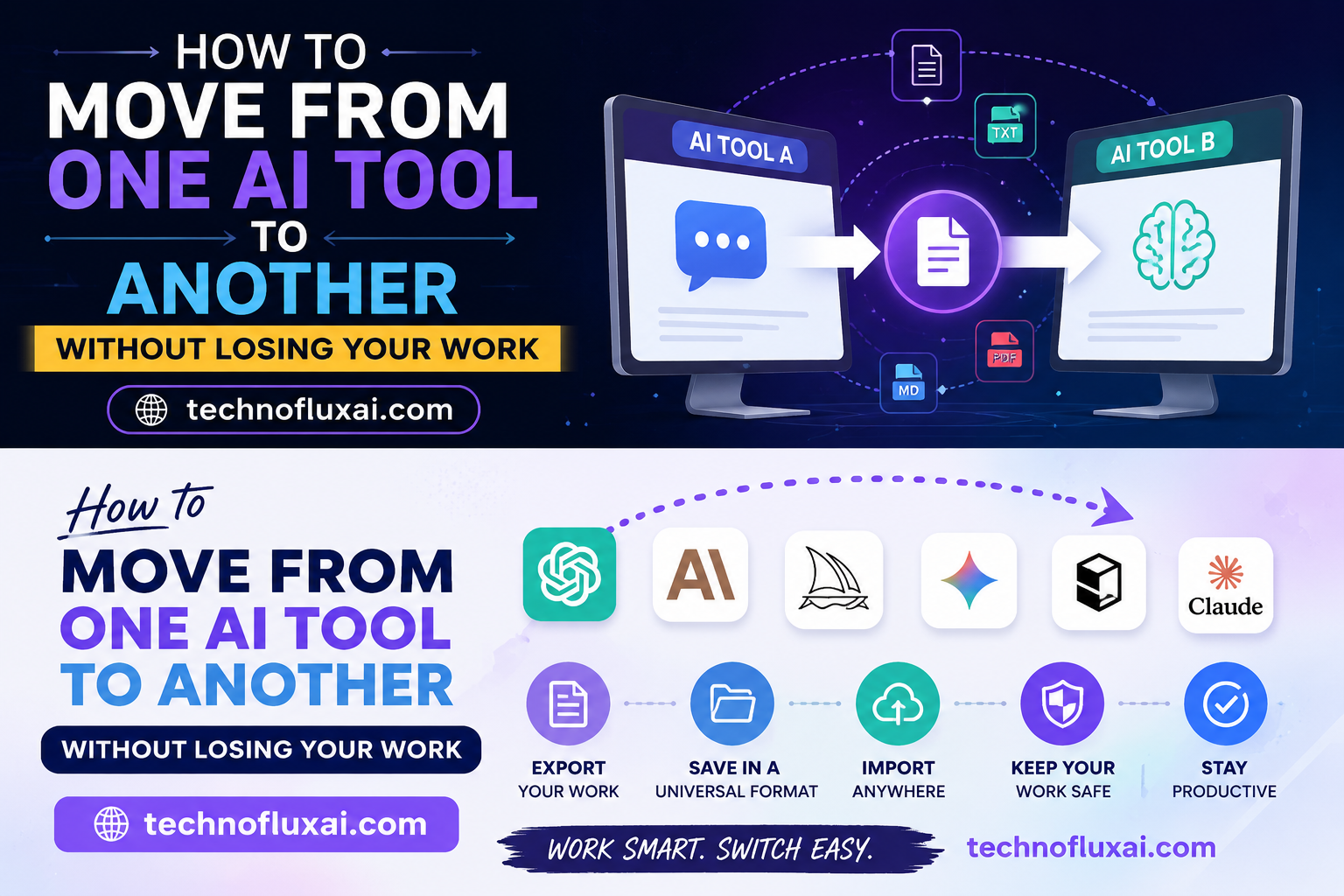
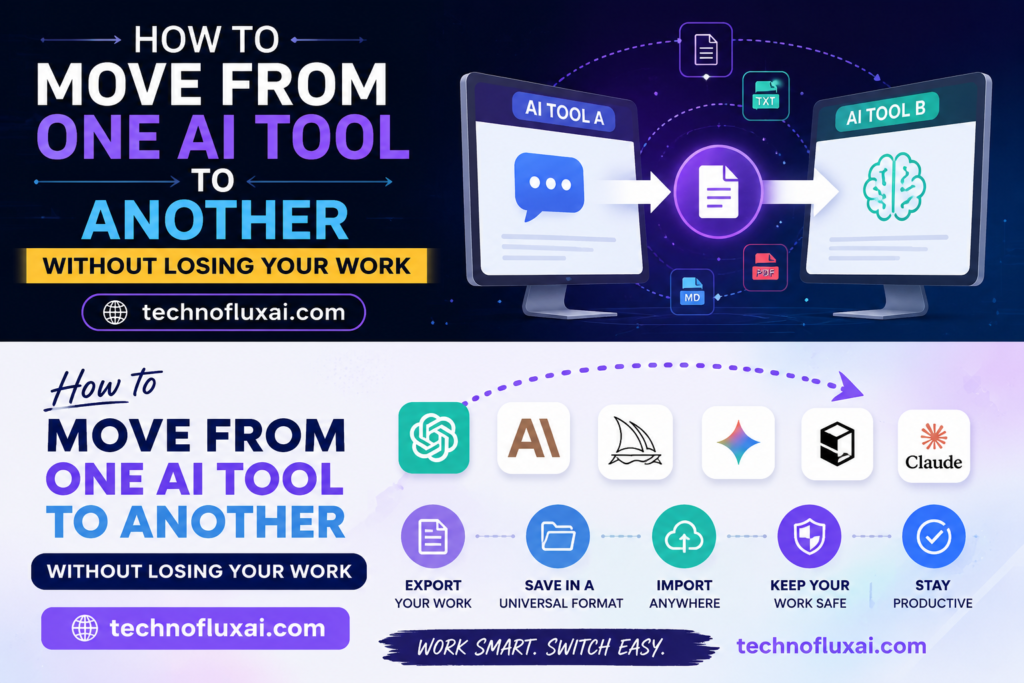
To move from one AI tool to another without losing your work, export or copy your important content, organize it by project, save your best prompts, document your settings, back up source files, and test the new tool with a small project before fully switching.
The Real Problem
Most people do not lose work because the new AI tool is bad. They lose work because their old workflow was never organized. Chat histories become archives, prompts get buried, files sit in different folders, and useful outputs are mixed with rough experiments.
What You Will Learn
This guide shows you how to protect your AI work, rebuild your workflow inside a new tool, avoid common migration mistakes, and create a system that makes future tool changes easier.
Think of your AI work as a portable workspace. The tool is only one part of the system. Your prompts, process, examples, source files, and decisions are what actually need to move.
Main Workflow
The Clean AI Tool Migration Method
The safest way to switch AI tools is to move your work in layers. Start with the work that matters most, then rebuild your process in the new tool instead of dragging over every messy experiment.
1. Audit What You Actually Need
Do not start by copying everything. First, separate your AI work into active projects, reusable prompts, finished outputs, source files, brand notes, research, and experiments. Anything outdated or low-value can stay behind.
2. Export or Save Important Content
Save your best chats, documents, prompts, generated outlines, summaries, code snippets, image prompts, data notes, and project instructions. Use simple formats like TXT, Markdown, PDF, DOCX, CSV, or organized folders.
3. Rebuild Your Core Prompt Library
Your prompts are often more valuable than the tool itself. Save prompts by use case, such as blog writing, SEO research, content repurposing, customer support, code review, data cleanup, image generation, or brainstorming.
Step-by-Step AI Tool Switching Checklist
Before You Switch
- List your active projects.
- Identify your most-used prompts.
- Save finished outputs.
- Download source files.
- Document custom settings.
During the Move
- Create folders by project or workflow.
- Copy only useful chat history.
- Test prompts in the new tool.
- Compare output quality.
- Adjust instructions for the new model.
After You Switch
- Archive the old workflow.
- Update your prompt library.
- Label your best examples.
- Remove duplicate files.
- Keep a backup copy.
What to Move First
High Priority
Active client work, unfinished drafts, business documents, prompt libraries, brand voice instructions, research notes, uploaded files, and repeatable workflows.
Medium Priority
Older drafts, brainstorming sessions, content calendars, saved examples, image prompts, reusable templates, and summaries you might use again.
Low Priority
Random tests, outdated experiments, rough conversations, duplicate files, old outputs you never published, and prompts that only worked once.
Practical Example: Moving a Blog Workflow
Imagine you use one AI tool to create blog posts and want to move to another. Instead of copying every chat, build a simple migration folder with your content brief template, SEO prompt, article outline prompt, editing prompt, brand voice notes, published examples, keyword list, and unfinished drafts.
Then test one article from start to finish in the new tool. If the results are weaker, revise your prompts. If the results are stronger, update your workflow and move the rest of your active projects.
Warning: Do Not Trust Chat History as Your Only Backup
Chat history is convenient, but it is not a clean knowledge system. Important work should be saved outside the AI tool in organized files, folders, documents, or a workspace you control. This protects you from account changes, deleted chats, plan changes, broken exports, or tools that shut down features.
Advanced Setup
Build a Portable AI Workspace
The best AI users do not depend on one tool to remember everything. They build a portable system that can move between tools without breaking their process.
Create a Master Prompt Vault
Store your best prompts in one organized location. Include the prompt name, purpose, when to use it, required inputs, expected output, and one example result. This makes your prompts easier to reuse in any AI tool.
Save Context Separately
Do not bury project context inside old conversations. Save brand voice notes, customer profiles, product details, formatting rules, content goals, and examples in separate documents that can be uploaded or pasted into a new tool.
Keep Source Files Untouched
Always keep original files separate from AI-edited versions. This matters for documents, spreadsheets, images, transcripts, research files, client notes, and anything that may need to be verified later.
Common Mistakes to Avoid
Copying Everything
Moving every chat creates clutter. Save the work that supports active projects, repeatable workflows, or important decisions.
Ignoring Formatting
A prompt that worked in one tool may need clearer structure in another. Preserve headings, examples, instructions, and output rules.
Skipping a Test Run
Do not move your whole workflow before testing one real project. A small test exposes missing context, weak prompts, and tool limitations.
Forgetting Permissions
Check which files, folders, integrations, browser extensions, and team permissions your old workflow used before expecting the new tool to behave the same way.
FAQ
Can I move my full chat history from one AI tool to another?
Sometimes you can export chat history, but full conversations do not always transfer cleanly into another AI tool. It is usually better to save the useful parts: final outputs, strong prompts, project instructions, decisions, and source files.
What is the most important thing to save before switching AI tools?
Save your active project files, best prompts, custom instructions, brand voice notes, unfinished drafts, and any outputs you cannot easily recreate.
Should I stop using the old AI tool immediately?
A short overlap period is safer. Keep access to the old tool while you test the new one, confirm your prompts still work, and make sure no active projects are missing important context.
How do I make future AI tool changes easier?
Keep your AI workflow portable. Store prompts, examples, source files, project context, and final outputs outside any single AI platform. Then every future switch becomes a controlled move instead of a rescue mission.
Final Takeaway
Moving from one AI tool to another is not just about exporting chats. It is about protecting the system behind your work: your prompts, files, context, examples, decisions, and repeatable process.
The more organized your AI workflow is outside the tool, the less risky every future tool change becomes.
Build an AI Workflow You Can Actually Control
Before switching platforms, take one hour to organize your prompts, project notes, files, and finished outputs. A clean migration saves time, protects your work, and helps you get better results from whichever AI tool you use next.